


First, localise the failure
“Remote Desktop can’t connect to the remote computer” with a long hang is a timeout: nothing answered. From the client, run:
Test-NetConnection 203.0.113.10 -Port 3389TcpTestSucceeded : True means the network path is fine and the problem is authentication or session policy. False means something between you and the host is dropping traffic — work through the fixes below in order.
Fix 1 — Confirm the host and the service are up
On the server (console, VNC or provider panel):
Get-Service TermService
Restart-Service TermService -Force
Also confirm Remote Desktop is enabled: System Properties > Remote, or check fDenyTSConnections is 0 under HKLM:\System\CurrentControlSet\Control\Terminal Server.
Fix 2 — Windows Firewall rules
The built-in “Remote Desktop” rule group must be enabled for your current network profile:
Enable-NetFirewallRule -DisplayGroup "Remote Desktop"If you use a custom port, the rule must match it — see our RDP port 3389 guide for the exact New-NetFirewallRule commands, and the Group Policy firewall guide for domain environments.
Fix 3 — The provider edge firewall
On a VPS or dedicated server there are two firewalls: Windows and the provider’s edge. If Windows rules look right but the port still times out from outside while netstat shows it listening, the edge filter is the culprit — open the port in the provider panel or support ticket.
Fix 4 — NLA / CredSSP mismatch
If the TCP test succeeds but the client errors out during login, patch levels disagree on CredSSP or the client cannot do Network Level Authentication. Update both machines first; only as a last resort, and temporarily, relax NLA on the host (SystemPropertiesRemote > uncheck “Allow connections only from computers running NLA”).
Fix 5 — Session time-limit policies (the idle disconnect)
Sessions that connect fine but die after minutes of inactivity are being ended by policy, not by the network. In gpedit.msc:
Computer Configuration > Administrative Templates > Windows Components > Remote Desktop Services > Remote Desktop Session Host > Session Time Limits
- “Set time limit for active but idle Remote Desktop Services sessions” → Never
- “Set time limit for disconnected sessions” → Never (or your retention choice)
Then gpupdate /force and reconnect.
Fix 6 — Keep-alives against NAT and VPN idle timers
Home routers and VPN concentrators silently drop TCP flows that stay quiet. Make the host send keep-alives every minute:
Set-ItemProperty "HKLM:\System\CurrentControlSet\Control\Terminal Server" -Name KeepAliveEnable -Value 1
Set-ItemProperty "HKLM:\System\CurrentControlSet\Control\Terminal Server" -Name KeepAliveInterval -Value 1
Restart-Service TermService -Force
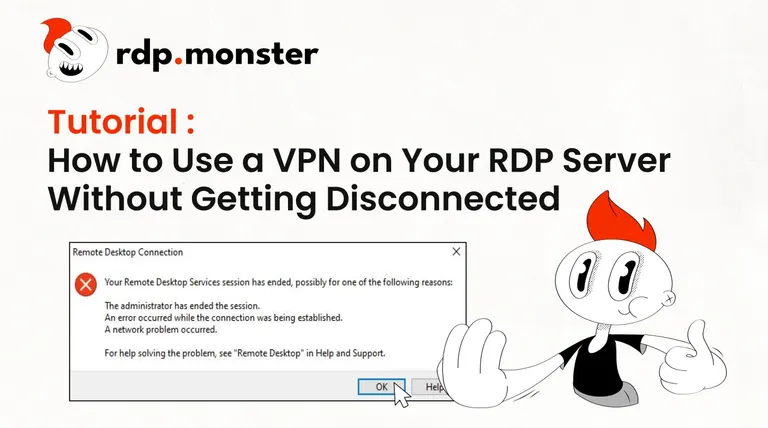
Running RDP through a VPN on the server side? Our guide to using a VPN on an RDP server without disconnection solves the classic “VPN up, RDP gone” trap.
Fix 7 — MTU and lossy links
Large packets that never survive the path cause connects that hang at the progress bar. Test with ping -f -l 1472 host; if it fragments, lower the interface MTU to 1400 on the client, or let UDP transport (enabled by default since RDP 8.0) absorb the loss.
Fix 8 — Session limits reached
Client Windows allows one interactive session; servers without RDS licensing allow two administrative sessions. A “timeout” right after credentials can simply be a full host — log off stale sessions with quser + logoff <id>.
Symptom → cause cheat sheet
| Symptom | Most likely cause | Fix |
|---|---|---|
| Hangs, then timeout | Firewall drop (Windows or edge) | Fixes 2-3 |
| Instant “refused” | Service down / wrong port | Fix 1, port guide |
| Dies when idle | Session time-limit GPO | Fix 5 |
| Dies randomly mid-use | NAT/VPN idle timer, lossy link | Fixes 6-7 |
| Fails right after login | CredSSP/NLA or session limit | Fixes 4, 8 |
Why does my Remote Desktop session disconnect after being idle?
What do RDP error codes 0x204 and 0x104 mean?
Does a timeout always mean a firewall problem?
How do I keep an RDP session alive through aggressive NAT routers?
If you are fighting a flaky home connection or an oversold server, the cleanest fix is upstream: a Windows RDP with dedicated CPU and RAM on a datacenter link does not drop sessions to begin with — delivered in about 10 seconds.